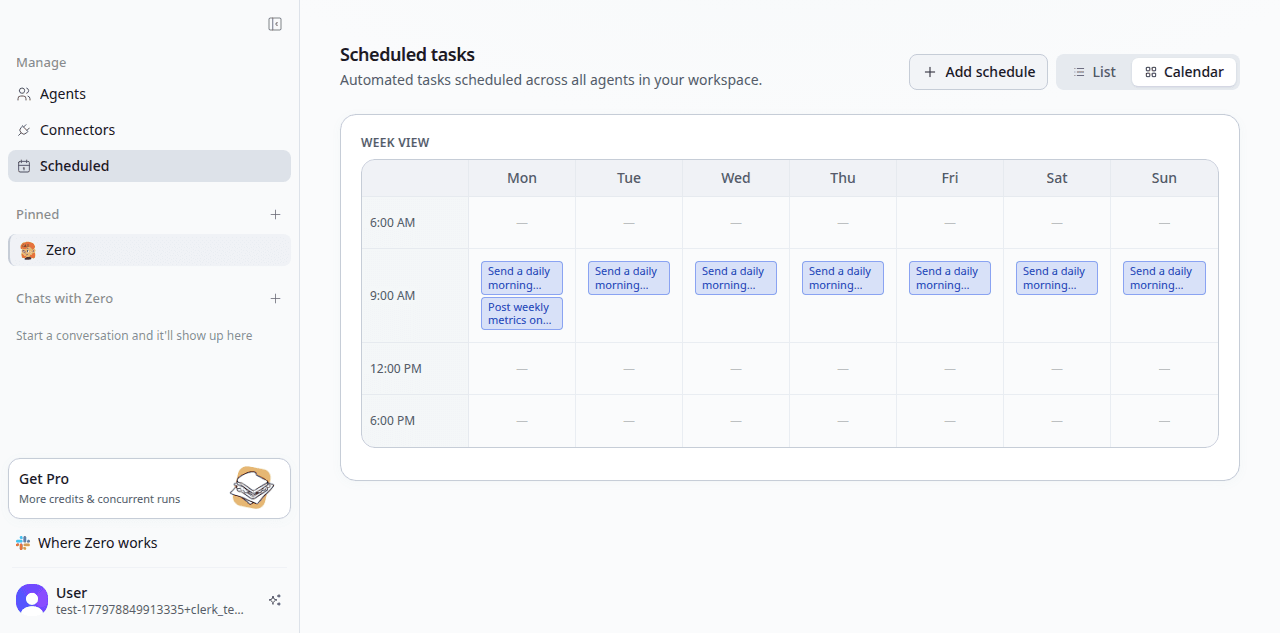
A schedule is the time-based family of automations: it runs a workflow on a cadence — daily, weekly, hourly, on a custom cron, on a fixed interval, or once at a set moment — and posts the result back where you want it.
Calendar reminders ask you to do work. Schedules do the work, then tell you it's done.
Everything on this page is one of three trigger types: cron, once, and loop. For event triggers — a new email, a finished CI run, a new Notion page — see Automations.
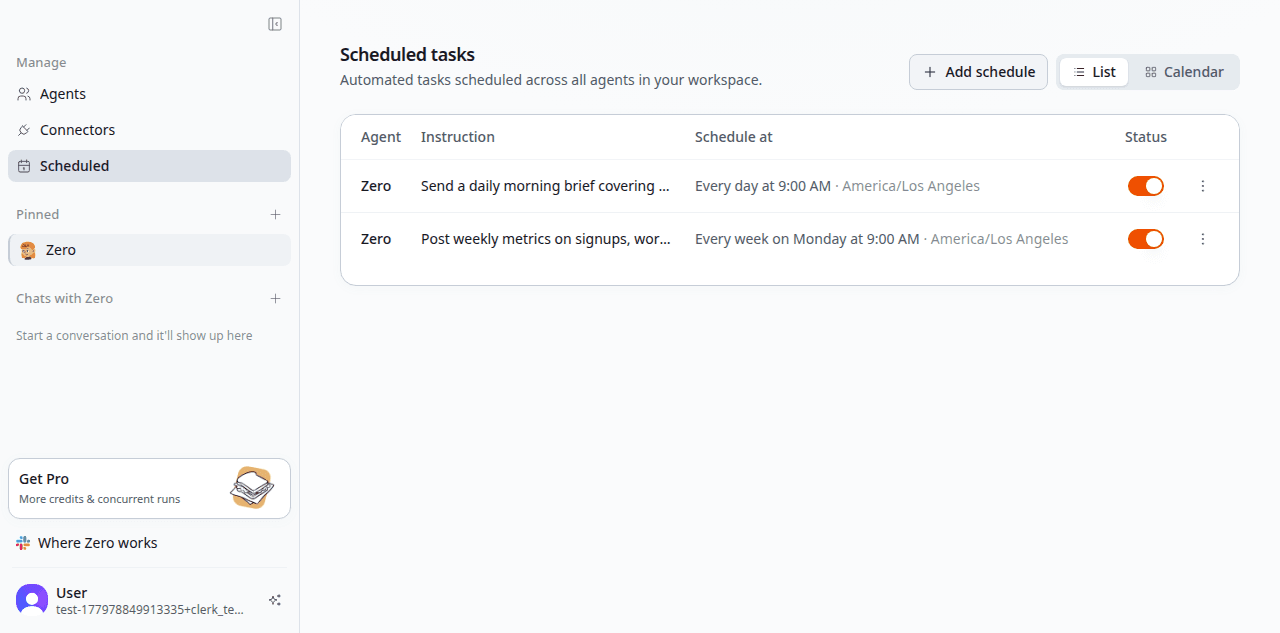
When a task wants to be a schedule
Almost any recurring "I should..." that lives in your head is a candidate. The pattern: the work is valuable, it's predictable, and the cost of skipping it is real but easy to ignore.
Worked examples from VM0:
- Morning brief at 8 a.m. every weekday — unread Slack mentions, open PRs, calendar, focus suggestion
- Weekly metrics digest every Monday — last week's numbers vs. prior week, posted to
#metrics - Inbox cleanup every evening — archive newsletters, label by sender, draft urgent replies
- Production health check every 30 minutes — query the dashboard, page on-call if any metric is out of band
- Friday content drop at 2 p.m. — blog draft plus social posts and cards bundled for review
- End-of-quarter board prep on the 25th of the third month — pull metrics, draft narrative, generate the deck
If the work should start from an event rather than a clock — mail arrives, a PR is approved, a page is published — an event trigger is the better fit and won't waste runs polling.
Cron, plain English, interval, or one-off
Four ways to say when:
- Plain English. "Every weekday at 8 a.m. Los Angeles time" — Zero parses this for you. Time zones, working days, "first of the month," "every other Friday" all work.
- Cron expression.
0 8 * * 1-5— for precise control. Set the IANA time zone alongside it (Asia/Shanghai,America/Los_Angeles); without one, schedules run in UTC. - Interval. Every
15m,1h,90s— aloop, for health checks and pollers where wall-clock alignment doesn't matter. - One-off. A single firing at a date and time you set — a
once. Useful for a reminder tied to a launch, an embargo, or a deadline.
The plain-English path is what most teams reach for. Cron is there when you need it.
Creating a schedule
Two ways. Pick whichever fits.
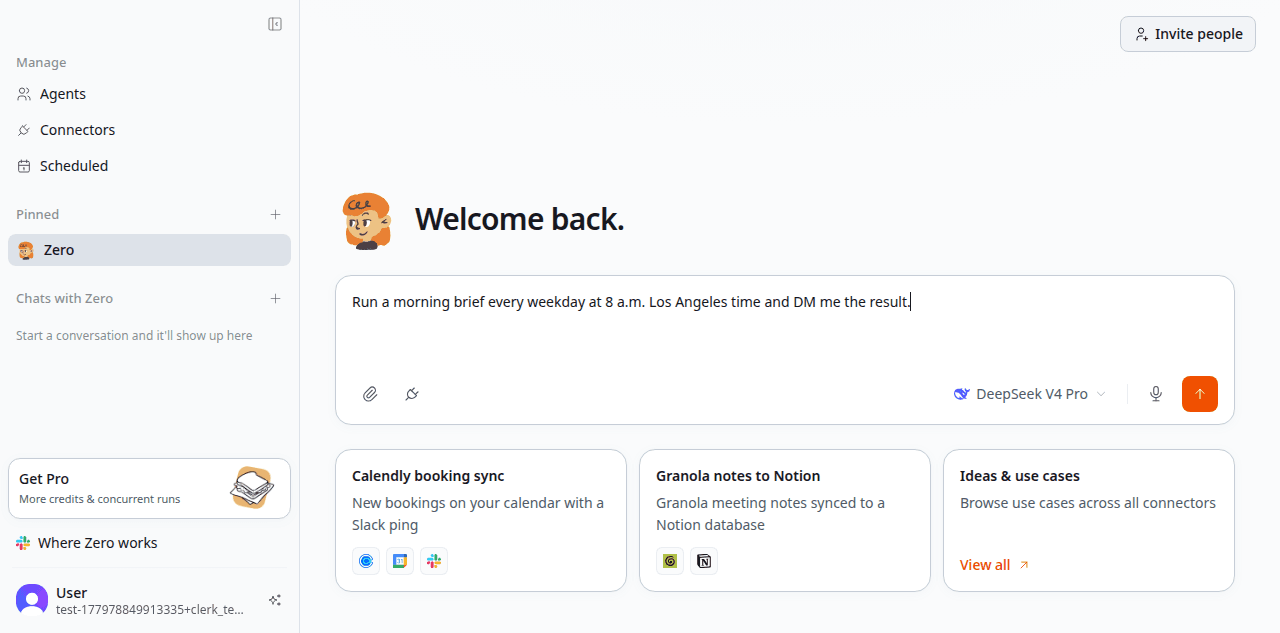
From a chat that works. Run the task as a one-off first. When it produces what you want, say:
"Run this every weekday at 8 a.m. Los Angeles time and DM me the result."
Zero confirms the cadence, the action, and the destination. The current chat becomes the workflow body, and the schedule is attached to it as an automation.
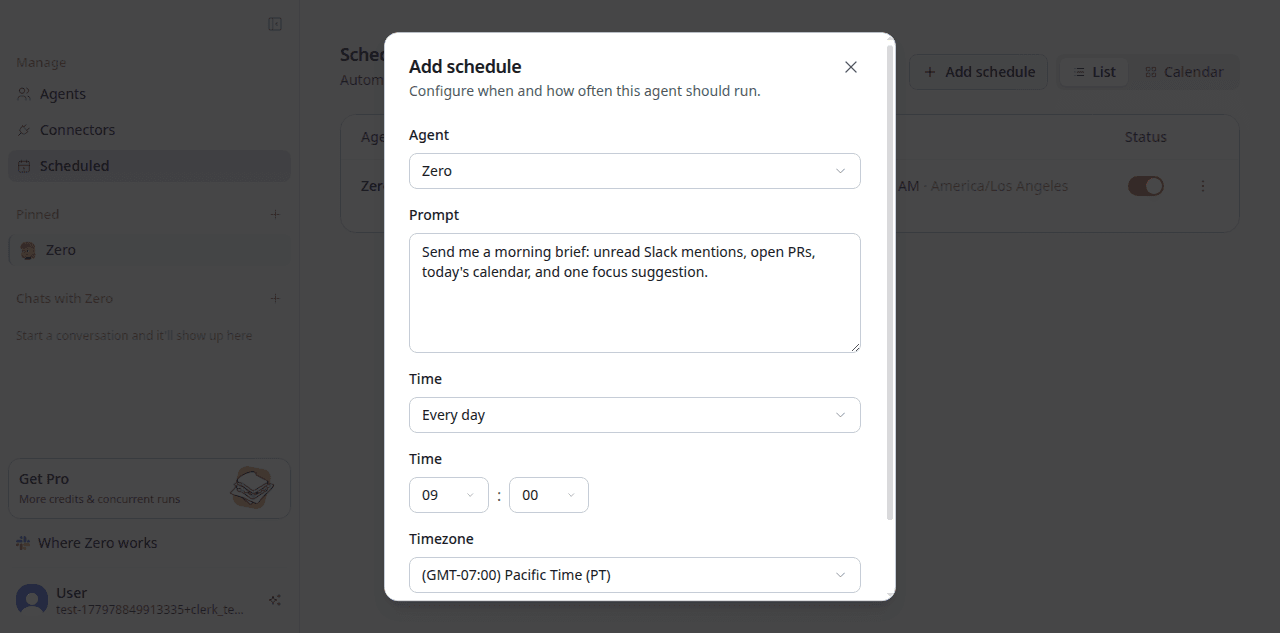
Explicitly, from scratch. Open the workflow in your workspace and add a scheduled automation directly — agent, instruction, cadence, time, and time zone. Useful when you know the shape ahead of time and don't want a dry run.
What runs each time
Each firing starts a fresh chat with no memory of the previous run: the same procedure, fresh data. Open the run history to see exactly what the last run did, where it spent credits, and what it produced. Failed runs are recorded with a reason and surfaced to you rather than dropped silently.
See Automations for where results can be delivered — Slack, Feishu, Teams, Telegram, Notion, Google Docs and Sheets, GitHub, a Gmail draft, a hosted page, or a workspace file.
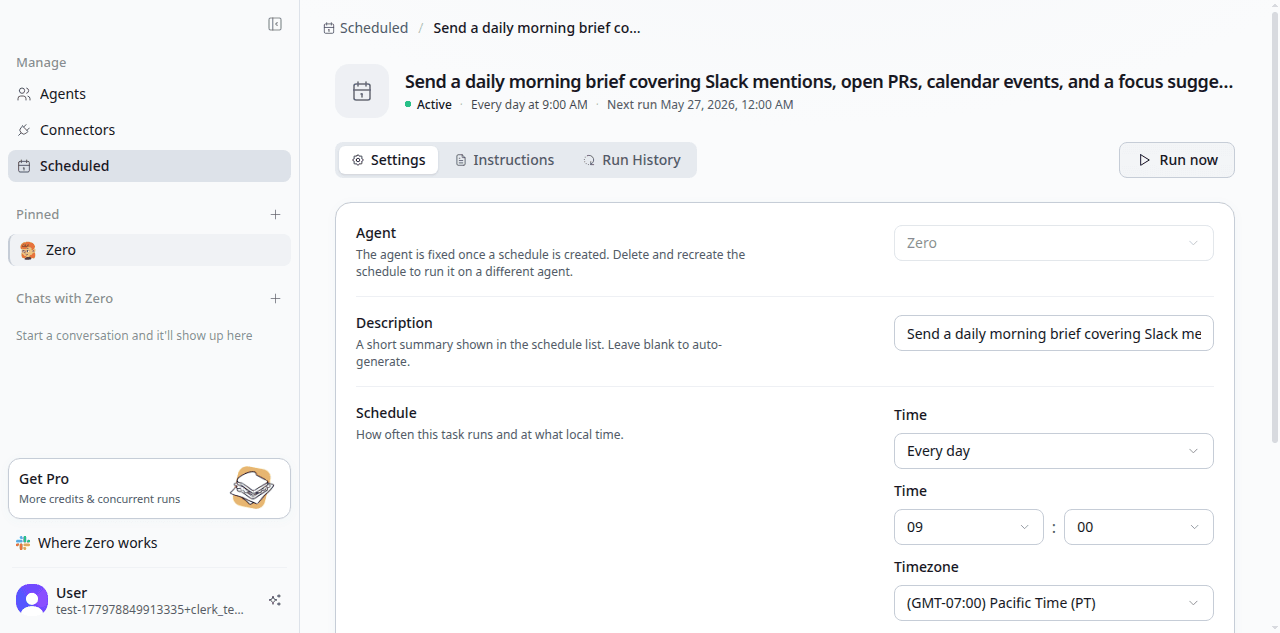
Tips that come from running schedules in production
- Watch the first three runs. Schedules are easy to set up; they're easier to refine once you see what Zero actually produces in your environment.
- Keep each task small. Long, multi-step schedules are more brittle. If a single schedule has to update five systems, consider splitting it in two.
- Pin the destination. Channels get renamed and people leave. Name the destination explicitly in the workflow instruction; Zero will warn if it can't find it next run.
- Time-bound long-running queries. If the prompt asks for "the last 30 days," restate that on every run so the window stays fresh.
- Mind the time zone. A schedule with no time zone runs in UTC, which is rarely what "9 a.m." means to the reader.
- Pause before vacations. Especially for schedules that DM you — coming back to 14 brief DMs isn't useful. Disable the automation and re-enable it when you're back; the workflow stays intact.
Costs
Each run consumes credits, and the run history shows the credit cost per run so you can spot the expensive ones. A morning brief is usually cheap — a few hundred credits. A weekly multi-tool content bundle might be one or two thousand. Short loop intervals multiply quickly: every 15 minutes is 96 runs a day. See Credits & billing for how this maps to dollars.
What's next
- See Automations for event triggers and webhooks.
- See Workflows for putting a frequently used pattern behind a name.
- See Chat for what happens during each run.
- See Example workflows for five end-to-end workflow and automation combinations.